-default.png)
Importify helps you find winning products from suppliers like AliExpress, Amazon, Etsy, Alibaba, Walmart, Shein, Temu, and 25+ more — and add them to your BigCommerce store in a few clicks. You don't hold inventory or ship anything yourself: you focus on selling, your supplier handles the rest.
This guide takes you from "just installed" to "first product live in your store." It should take less than 10 minutes.
What You Can Do with Importify
- Find products in any niche — Importify's Product Finder is updated daily with fresh, in-demand items, so there's always something new to test.
- Sell from 25+ marketplaces — AliExpress, Amazon, Etsy, Alibaba, Walmart, Shein, Temu, and more.
- Save hours per product — built-in AI rewrites titles, descriptions, and SEO copy in seconds (Premium and Gold).
- Skip the spreadsheet — set your markup once and every imported product is priced correctly automatically.
- Manage orders in one place — every BigCommerce order shows up in Importify next to its supplier product, so fulfillment is a click away.
Before You Begin
You'll need:
1. An active BigCommerce store (any plan, including Trial)
2. Importify account (created automatically when you install the app)
Google Chrome, or Edge - for the Chrome extension (optional - you can add products directly from the importify dashboard)
Step 1 — Install Importify from the BigCommerce App Marketplace
1. Sign in to your BigCommerce control panel.
2. From the left menu, go to Apps → Marketplace.
3. Search for "Importify" and open the app listing.
4. Click Get this app (or Install).
5. Review the permissions Importify requests, then click Confirm.
After confirming, BigCommerce will redirect you to Importify, where your account is created automatically and your store is linked.
Step 2 — Choose a Plan
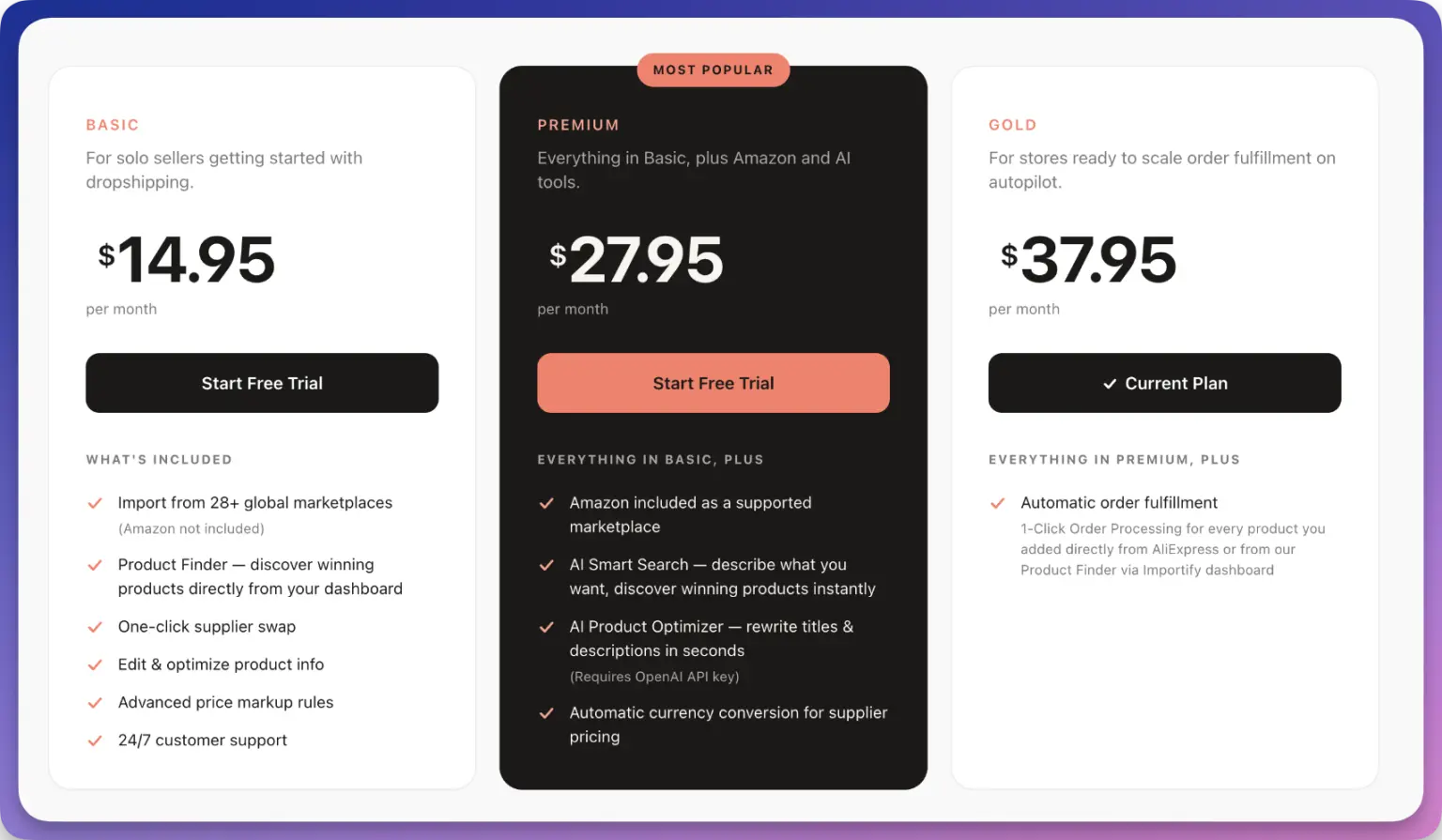
Importify offers three plans — Basic, Premium, and Gold — billed monthly or yearly. Pick the one that fits where you're at:
- Basic — for new stores testing their first products
- Premium — full marketplace access plus AI tools for titles, descriptions, and SEO copy
- Gold — everything in Premium, plus order automation built for higher-volume sellers
You'll see live pricing on the plan-selection page after install. Pick the plan that fits your needs and continue to checkout.
New users get a free trial — the exact terms are shown in-app.
Step 3 — Add Your First Product
There are two ways to add products. Most users start with the Product Finder because it's already built into the dashboard — no setup required. The Chrome extension is for when you want to import a product from any supplier site directly.
Option 1 — Product Finder (Start here)
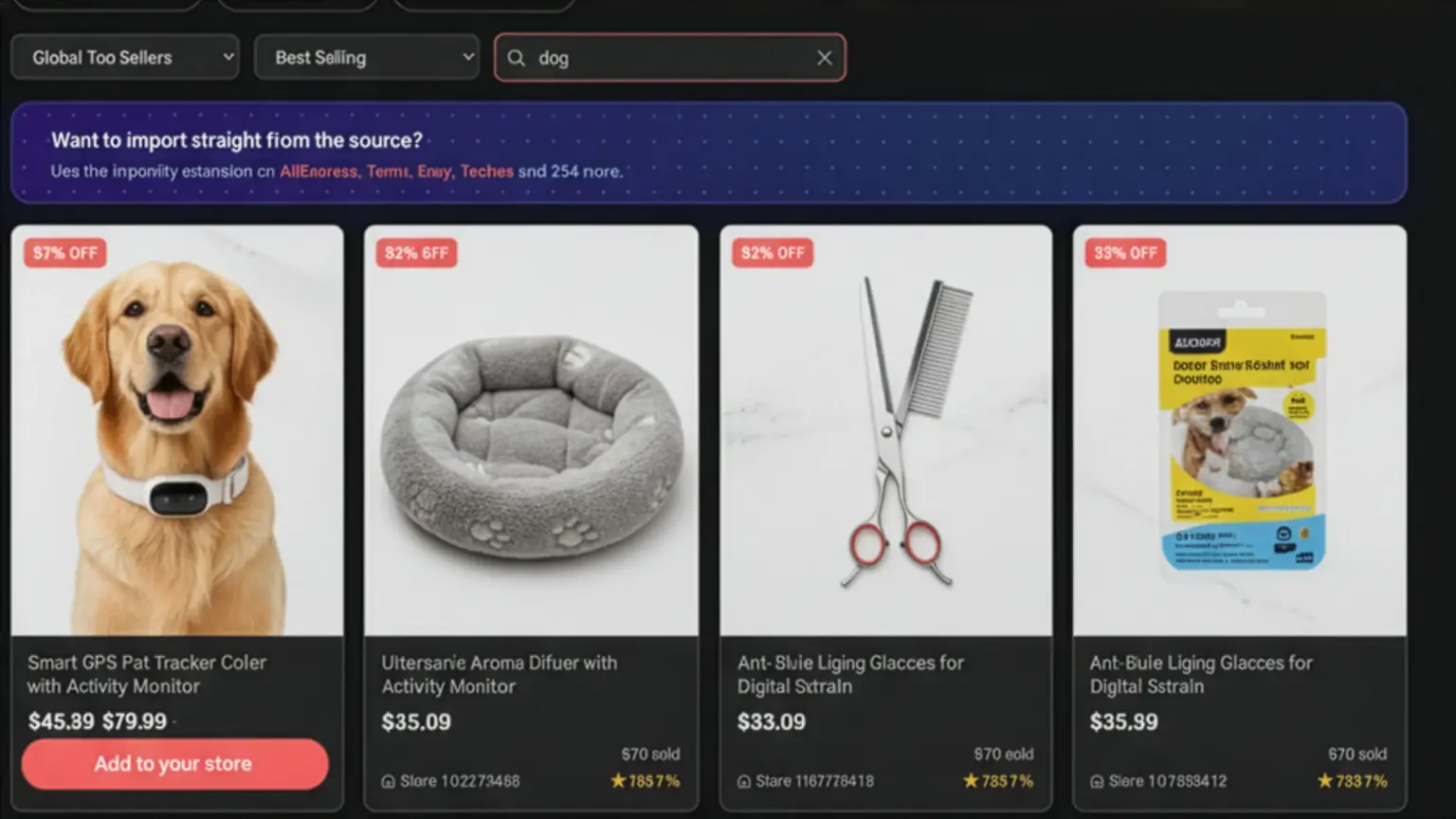
The Product Finder is the fastest way to discover products that are already selling well. It covers every niche, with new listings added every day, so you'll always have something fresh to test.
1. Open Find Products in the Importify menu.
2. Search by keyword (for example, "yoga mat" or "led desk lamp"), or use Browse to scroll through bestsellers.
3. Filter by category, price, order count, rating, and shipping country until you find one you like.
4. Click a product to open the Importify editor with all its details ready to customize:
- Edit the title and description (or hit AI rewrite for fresh copy in seconds)
- Reorder or remove images
- Pick the variants you want and set their prices and stock
- Apply your pricing rule so markup is added automatically
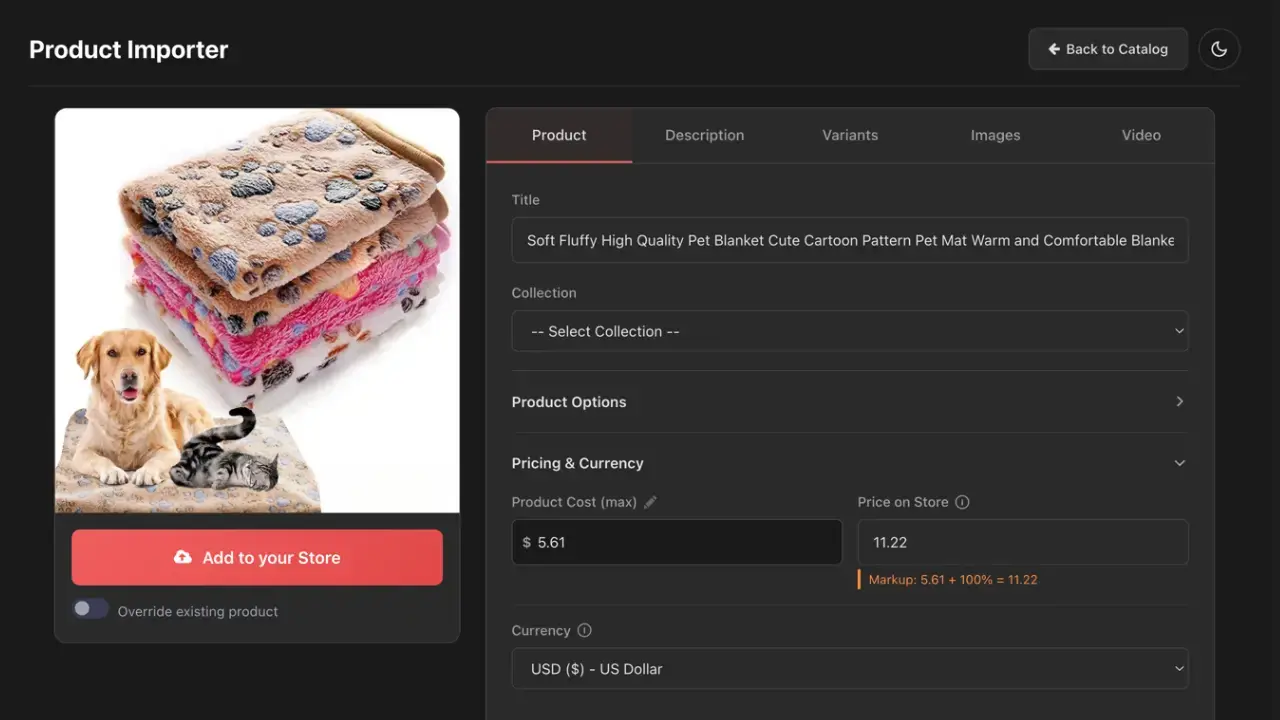
5. Click Add to your store. Importify publishes the product directly to BigCommerce — title, images, variants, prices, and all.
Option 2 — Chrome Extension (import from any supplier site)
The Chrome extension lets you grab products straight from supplier websites — handy when you've already spotted something specific you want to sell.
Install it once:
1. From the Importify dashboard, click Install Extension or Click here
2. Click Add to Chrome, then Add Extension when prompted.
3. The Importify icon will appear in your Chrome toolbar — pin it for quick access.
Then import a product:
The full list of supported marketplaces is at [importify.com/suppliers]
Pick one (AliExpress, Alibaba, Etsy, and 20+ more) and visit their website.
1. Open a product page on the supplier's site in Chrome.
Click the Importify icon in your toolbar (or the Add button on the page). An Importify modal opens right on the supplier page — no need to leave the site.
3. In the modal, customize everything before publishing:
- Edit the title and description, or let AI generate optimized copy
- Reorder or remove images
- Pick the variants and set their prices
4. Click Add to your store. The product goes straight to BigCommerce — title, images, variants, prices, and all.
Step 4 — View Your Product in BigCommerce
1. Go to your BigCommerce control panel → Products → View.
2. Your new product is at the top of the list.
3. Open it to confirm everything looks right.
That's it — you've imported your first product. Repeat with as many as you like.
Managing Orders
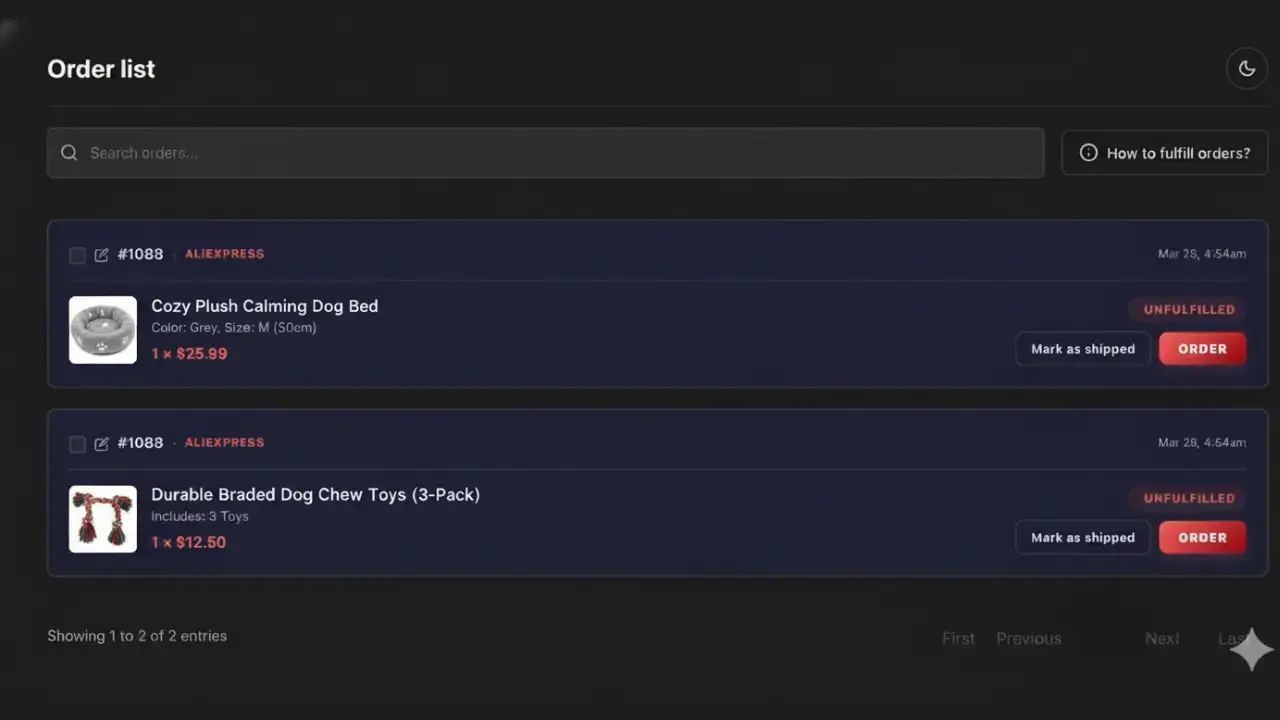
Open the Orders tab in Importify to see every BigCommerce order alongside its supplier product.
One-click fulfillment. For products you imported from AliExpress or added directly from Importify dashboard Product finder - you can place the supplier order without leaving Importify:
1. Find the BigCommerce order in the Orders tab.
2. Click Order next to it.
3. Importify opens AliExpress's checkout page with the items in the cart and your customer's shipping address already filled in.
4. Review the details and complete the payment on AliExpress.
Once the supplier ships, mark the order fulfilled in BigCommerce — your customer gets the shipping notification automatically.
Products imported from other suppliers (Etsy, Walmart, and others) also appear in the Orders tab with a link back to the supplier product.
Frequently Asked Questions
Q: Do I need any other accounts to use Importify?
You only need a BigCommerce store and a Chrome/edge browser. You may also need accounts on the supplier sites you import from (most don't require login to import, but a few do).
Q: Can I uninstall Importify safely?
Yes. Removing the app in BigCommerce automatically revokes Importify's access to your store. Your imported products stay in BigCommerce — only the connection to Importify is removed.
Need Help?
- Email support/online form - https://importify.com/contact
- Knowledge base - https://help.importify.com
We typically respond within a few hours during business days.